Setup & Optimization
How to Test Conditional Shopify Surveys Before Launch
7 min read · Updated
To test a conditional Shopify survey, write down the expected question path for each answer, try those paths in the builder, then verify a saved response on each Shopify page you plan to use. Include a changed answer, an unanswered optional question and the final completion message. A preview that looks right is one part of the check; it does not establish that the published block can save responses.
This checklist uses OrderSurvey's visual builder and an illustrative discovery survey. It is a test plan you can adapt, not a claim about a customer's results. Conditional branching is available on the Thank you and Order status pages. It is not supported for OrderSurvey's POS surveys.
Watch an answer change the next question
Our product walkthrough shows the actual OrderSurvey builder in a development store, including a score-based follow-up and completion. The demonstration uses test data, not customer results. Use it to recognize the controls, then run the checklist below against your own questions.
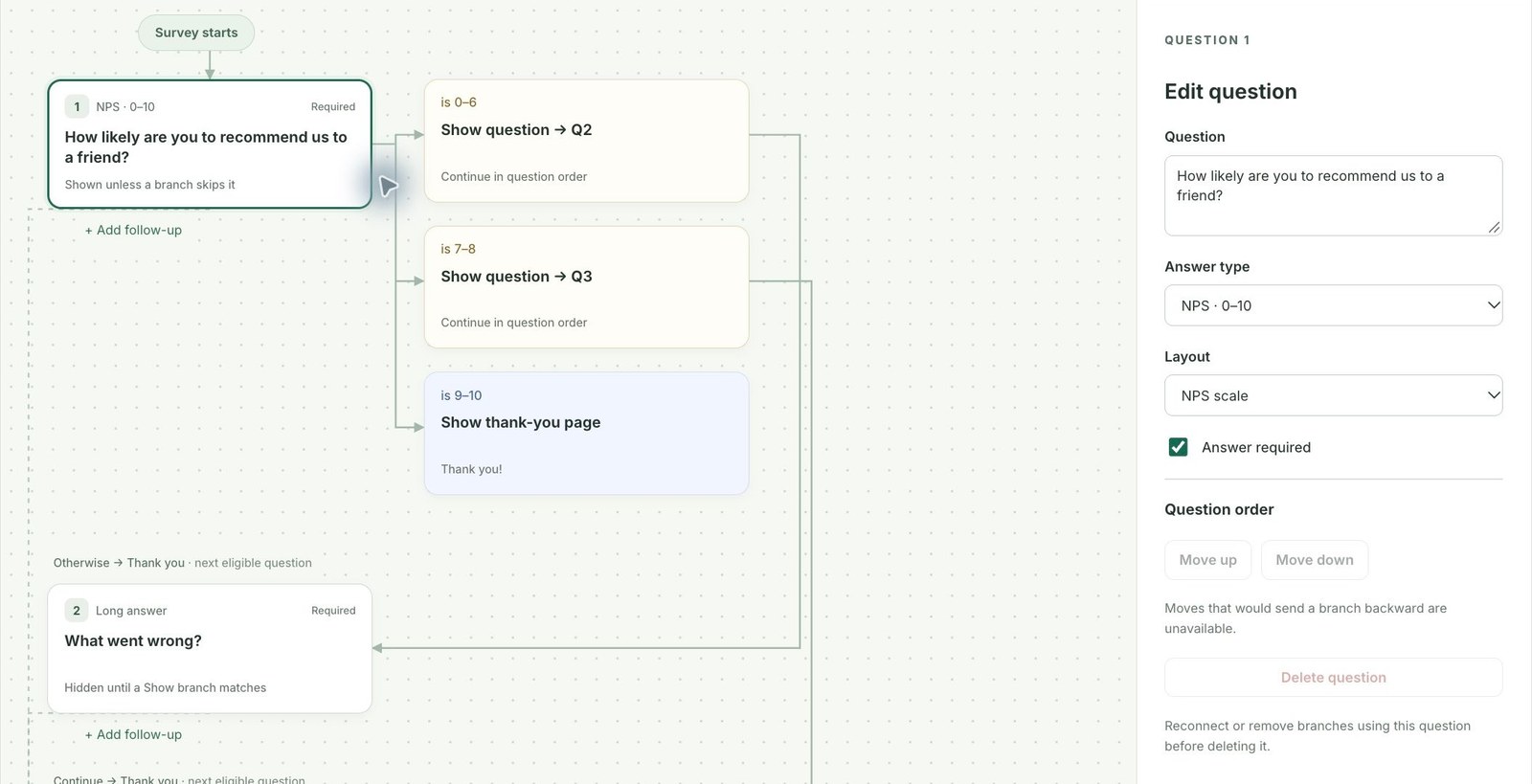
The smallest useful test is two different paths. For the NPS example, a low score should ask what went wrong, while a high score should reach its configured thank-you message. If both answers reveal the same unexpected question, review the rule target and range before publishing.
1. Write the expected paths before adding rules
Start with one business question: “Where did you first hear about us?” Use a single-choice question when the goal is one remembered discovery source. For example:
| Answer | Follow-up to show | Questions to keep hidden |
|---|---|---|
| A creator | Which creator do you remember? | Podcast and Other follow-ups |
| A podcast | Which podcast do you remember? | Creator and Other follow-ups |
| A friend or family member | None | All detail questions |
| Other | Where did you hear about us? | Creator and podcast follow-ups |
Make the detail questions optional if a customer may not remember a name. An absent detail is more useful than a forced guess. See the discovery-question playbook for choosing wording and answer options.
In the visual builder, place the main question first and the detail questions afterward. Add a Show question branch for each relevant answer. A question targeted by a Show rule starts hidden until a matching rule reveals it. An unconditional question remains on the normal path, so adding a follow-up question without a rule does not make it conditional.
Keep the rule values aligned with the answer options. If you rename “A creator” to “A creator or influencer,” review the corresponding condition before saving. An old answer value can leave the intended follow-up unreachable.
2. Try each path in the builder preview
Open Preview, choose an answer and complete the path. Use Restart between independent checks. The preview highlights the matching path and shows the completion state; it does not save answers, navigate to external pages or apply tags.
For the example above, check all four answer choices. Record what actually appears rather than marking the survey passed after the first successful path.
| Check | Expected result |
|---|---|
| Choose A creator | Only the creator detail appears after the main question |
| Choose A podcast | Only the podcast detail appears |
| Choose A friend or family member | Finish without a detail question |
| Choose Other | Show the Other detail, without unrelated questions |
| Leave an optional detail empty | The visible path can still finish |
| Leave a visible required question empty | The preview does not advance or complete |
If you use One question at a time, check Next and Back. If you use All relevant questions on the same page, check that only the relevant details appear as the first answer changes. Test the display mode you intend to publish.
3. Change an answer after filling its follow-up
This catches a problem that a simple straight-through test can miss:
- Choose A creator and enter a clearly fictional test name.
- Return to the first question, or change it directly in the same-page layout.
- Choose A podcast.
- Confirm that the creator question disappears and the podcast question appears.
- Complete the new path. During the later live test, check that the saved response contains the podcast path, without the now-hidden creator detail.
A hidden or skipped question should not prevent completion because it was marked required. It also should not trigger a later branch or a customer tag. Keep this check when you add more questions; testing only the final answer choices will not exercise an earlier answer change.
4. Check the boundaries and rule order
For score-based conditions, test the edges as well as a middle value. If your NPS paths cover 0–6, 7–8 and 9–10, test 0, 6, 7, 8, 9 and 10. That catches overlapping ranges and missing boundary scores. The NPS follow-up guide explains how to choose questions appropriate to the experience a buyer has actually had.
For multiple-choice questions, test one selected option, another option, and both together. Confirm whether your rule requires all conditions or any condition. An unanswered optional question does not satisfy a negative condition such as “is not A creator.” Add an intentional default path instead of relying on a blank answer to match.
OrderSurvey supports forward question jumps. It does not support jumping backward or creating a loop. If more than one navigation rule matches at the same question, the first matching navigation action takes precedence. Avoid overlapping jump, result, redirect and end rules unless that order is deliberate and tested.
5. Verify what happens at completion
For each path, write down the intended ending: the normal thank-you message, a specific result, or an early finish. Check the title and message, including a path that matches no special ending rule.
If you use Redirect to URL, OrderSurvey shows a Continue link after a successful submission. It does not automatically move a buyer away from Shopify. Use a complete HTTPS address, and verify the actual destination during your live test. The builder preview only describes which URL would open.
If a branch applies a customer tag, previewing it is not proof that Shopify received the tag. Use an authorized test customer and check the actual customer record after submission. Customer access must be available, and an order without an identifiable customer cannot be used to prove tagging works. Do not use a real customer's record just to test a rule.
6. Test the published Thank you and Order status blocks
Save the survey, enable it, and verify its locations, schedule and audience. Then add and save the OrderSurvey block on each intended page in Shopify's checkout and accounts editor. Installing the app or enabling a survey does not publish those blocks automatically. Shopify documents the distinction in its guide to adding checkout and customer-account apps.
Use your development store or a merchant-authorized test process. Follow the Thank you setup guide and Order status setup guide, then verify:
- The intended survey appears for an order that matches its audience and rules.
- The text, answer choices and controls are usable at a narrow mobile width.
- Each intended branch reaches the correct completion message.
- The submitted answers appear under Responses for the expected survey and order.
- A page revisit does not create a second response for the same survey and order.
A completed survey can show its completed state when revisited. Use separate test orders if you need an independent submission on each placement. Record the test order references and exclude them from performance reporting; a test answer is not new customer feedback.
Keep a small release checklist
Save a dated note with the survey name, intended audience, question wording, expected paths, test order references and any failures. Repeat the affected checks whenever you rename answer options, reorder questions, change required fields or edit conditions. If a path fails, correct it before directing more buyers to the survey.
You can start on Free with 100 responses per rolling 30 days, including conditional branching. Unlimited is $24 USD/month, adding unlimited responses, CSV export and webhook alerts. Install OrderSurvey to build your first survey, or book a personal setup walkthrough for help checking the questions and both Shopify placements.
Frequently asked questions
Does the OrderSurvey builder preview save responses?
No. The builder preview simulates question paths and completion messages. It does not save responses, open destination links or apply customer tags. Verify those outcomes separately in an authorized test store.
Why can a required follow-up disappear?
A conditional question is required only when it belongs to the customer's current path. Changing an earlier answer can remove that follow-up. Test that the new path can finish without answering a hidden question.
Can I test both Shopify placements with the same completed survey?
A completed survey is deduplicated for that order. Reopening it can show the completed state rather than a fresh questionnaire. Use separate test orders when you need independent submission checks on Thank you and Order status pages.
Run your first post-purchase survey
Ask how customers found you or collect feedback on Shopify's Thank you and Order status pages. One $24 USD/month plan includes unlimited use and every feature. After installing, add the survey block to each page in Shopify's editor.
Install OrderSurveyWant help getting started? Book a 20-minute setup call.